Posts

How to Open Public WiFi Login Page on Windows 10?
Image
Among the best part of going to a restaurant or a movie hall is getting a public Wi-Fi access. But sometimes even after connecting to the Wi-Fi, the sign-in page does not get displayed. In such cases, you are not able to browse over the internet. To know how to get back the public Wi-Fi sign-in page, you need to go through this blog carefully. Method 1: Restart the device Firstly, you need to disconnect from the network. Then, disable the Wi-Fi. After that, sign-out from the user account. Next, shut down the computer. Then, switch on the computer. After that, sign in to the user account. Next, enable the Wi-Fi. Then, connect to the network one more time. Lastly, check if the sign-in page is now able to display in the browser or not. Method 2: Go for the another browser Firstly, visit the Start menu. Then, write ‘Control Panel’ into the search bar. Note that the option shall get displayed as Best Match. Press it. After that, choose ‘Categor...

How to Fix FaceTime Issues?

Image
I find FaceTime very useful because I can stay in touch with my family members as well as friends who stay far away. So whenever FaceTime stops working, I start getting worried a lot. Here, you will get to know the method of fixing FaceTime issues . Switch on and off Wi-Fi or go to Cellular Data 1.       Firstly, you need to refresh the net connection by turning off and then turning on Wi-Fi. 2.       Visit Settings. 3.       Then, press on Wi-Fi and disable it with the help of pushing the toggle. 4.       Now wait around half a minute and then enable it. An alternative method- (For the users of LTE Data) 1.       Firstly, press on Settings. 2.       Then, press on Cellular. 3.       After that, push the Cellular Data off and on. Change the DNS For iDevices- 1.   ...

How to Turn On Dark Mode on Instagram?

Image
The dark mode is a color scheme on digital devices that allows users to view light in the dark background or theme. It is also known as night mode as it is much better to use in the night when it is dark everywhere. In the dark mode, most of the part of our phone display will appear black, and it reduces unnecessary brightness and lights from your screen. The dark mode is becoming more popular than before. Several apps are providing built-in dark mode feature which can be used anytime by pressing a button.  If you use social media too often, then you might be addicted to Instagram. It is also one of the most popular social networks of all-time. Instagram app has a dark mode theme that tweaks some of the settings of your phone. Here is how you can use it.  What Devices are Compatible with Instagram Dark Mode?  There are no specific models of smartphones that support Instagram’s dark mode. However, if you are using an Android device, then you should have Androi...

How to Fix Error Checking for Updates on Google Play Store?

Image
Google Play Store is one of the most used App downloaders and reasonably so. It has a large user base and users all over the world rely on it. Even though it rarely shows errors and problems sometimes you may encounter an error regarding updates. This can be very frustrating since it prevents you from updating the apps on your device. Google Play Store is meant for managing apps, updates, and installation. But, it is developed by mere humans, so the Play Store can sometimes act up or even show up errors. Let’s learn how to solve the “Error Checking for Update” message on your Android phone or tablet.  What Are the Causes of the “Error Checking for Update” Issue? Corrupted app Cache: If the cached data of the Google Play Store is corrupted, then it might prevent the app from performing several tasks such as updating apps. In order to fix this error, you should start by clearing the cache data of the Google Play Store.  Corrupt data: If the prog...

How to Fix BSOD Error 0xA7 BAD_EXHANDLE?

Image
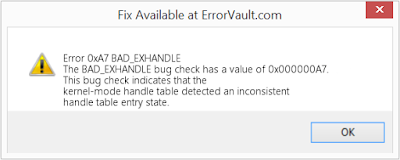
Facing the Blue Screen of Death (BSOD) in mid of your work is very annoying. In this blog, you will know more about the BAD_EXHANDLE error and the ways to fix it. Go through the blog carefully and follow the provided steps properly. Some of the major reasons behind this error is having a corrupt memory (RAM), and the presence of old device drivers. Method 1: Delete temporary files  1.       Firstly, visit the Start menu. 2.       Then, write ‘CMD’ into the search bar. 3.       Next, do a right-click on the Command Prompt. 4.       After that, choose Run as Administrator. 5.       Then, press on the Yes option. 6.       Next, write ‘cleanmgr’. 7.       After that, tap on Enter. 8.       Then, give some time. 9.       A dialog box wil...